


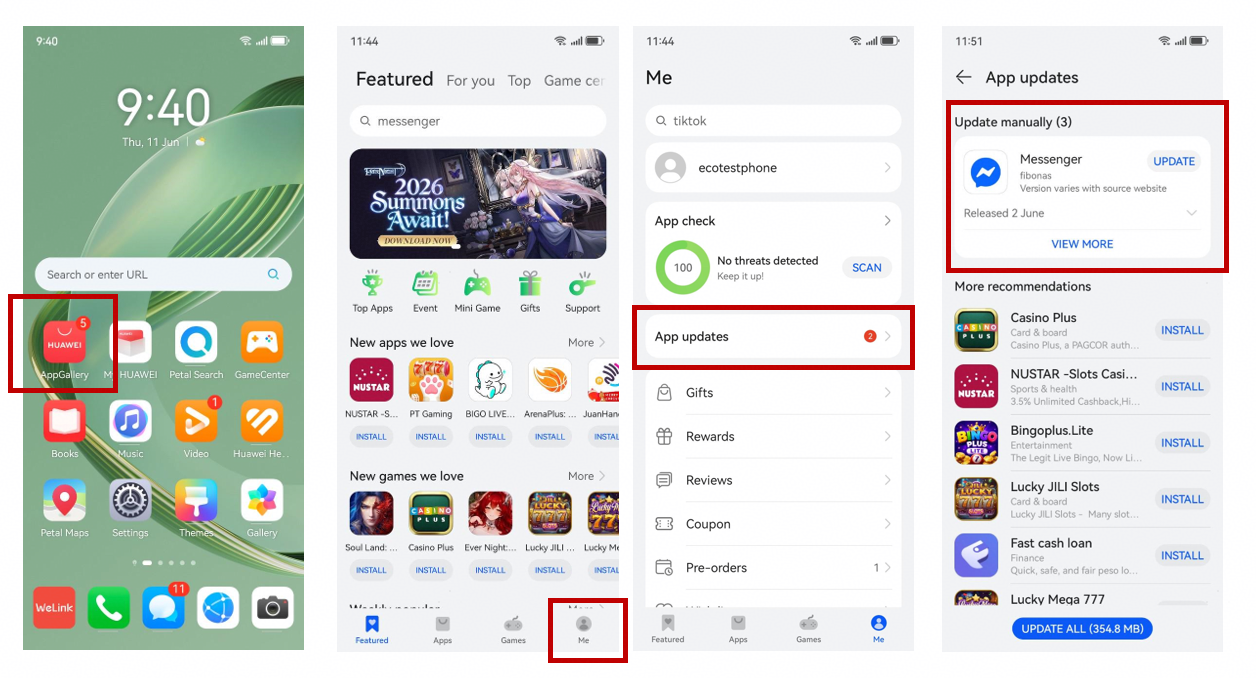
Messenger is easy to overlook until an important message arrives late. On a Huawei phone, an update may install correctly while notifications, background activity, or battery controls still prevent the app from behaving as expected. This guide explains how to update messenger in huawei and the settings worth checking immediately afterward.
Start with the official update source
Open HUAWEI AppGallery and search for Messenger. If an Update button appears, tap it and wait for the installation to finish before opening the app. When no update is shown but Messenger is unstable, uninstalling the current copy and reinstalling it from AppGallery can replace damaged files and restore a clean setup.
Avoid downloading modified APK packages from unfamiliar sites. Messaging apps handle private conversations, contacts, photos, and login details, so the publisher and download source matter as much as the version number.
Turn Messenger notifications back on
After the update, open Settings, choose Notifications, and find Messenger. Make sure Allow notifications is enabled, then review banners, lock-screen alerts, sounds, and notification categories. Menu names can differ slightly between EMUI versions, but Messenger should have permission to display alerts.
People searching for how to update messenger in huawei often discover that the app is already current; the real problem is a notification permission that was disabled during a reinstall or system change.
Let Messenger run in the background
Go to Settings > Battery > App launch, locate Messenger, and switch it to manual management when needed. Enable auto-launch, secondary launch, and background activity so the app can receive messages when it is not open.
You can also search Settings for Battery optimization, show all apps, select Messenger, and choose the option that prevents the system from optimizing it. Huawei’s wording varies by software version, so follow the description that allows normal background operation.
Finish with a quick test
Restart the phone, connect to a stable network, and ask a contact to send a test message while the screen is locked. If the alert arrives, the update and background settings are working together. If it does not, clear Messenger’s cache, confirm that Data Saver is not restricting it, and sign in again.
For a visual walkthrough, use the Huawei Community guide on how to update messenger in huawei.
Leave a comment